
Visual selector: edit text
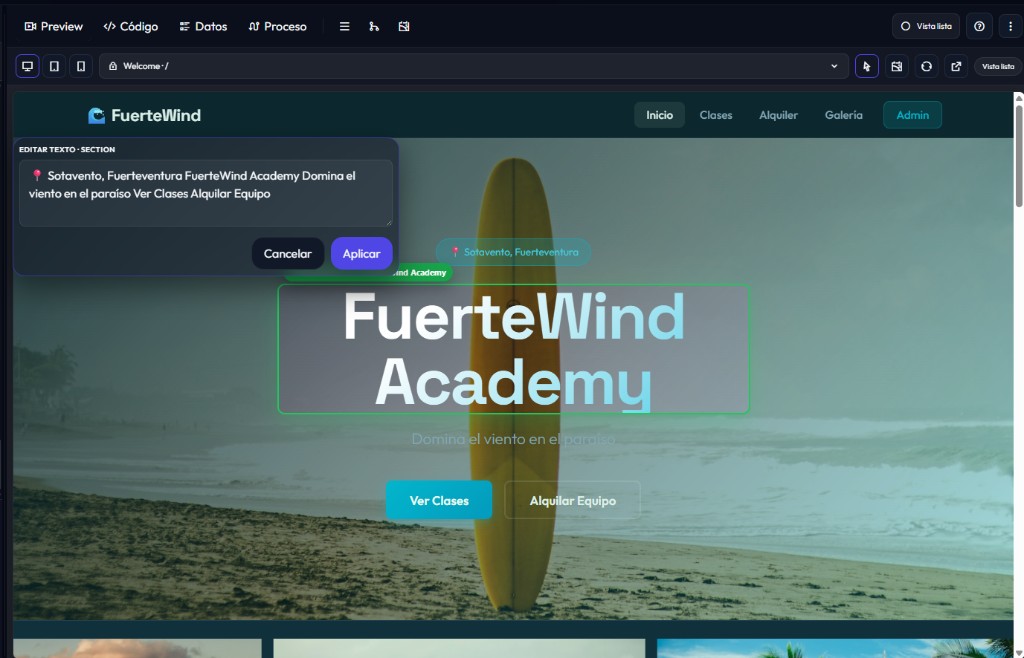
With Visual selector (cursor icon in Preview) you can work on the live app: point at an element, change text with a double-click, or replace photos with a right-click — without messaging Copilot.
Double-click to change text
- Open Canvas → Preview tab.
- Turn on the cursor icon (Visual selector). It should stay highlighted.
- Double-click the text you want to change (title, paragraph, button…).
- The Edit text panel opens. Fix the content.
- Click Apply. The preview updates.
Tip
Sometimes the panel groups several texts from the same section (eyebrow, title, subtitle, CTAs). Edit only what you need and apply. For a big rewrite, ask Copilot instead.
The three selector gestures
Left-click
Select an element (“Selected” outline). Useful to guide Copilot: “change this”.
Double-click
Edit text in the Edit text panel → Apply.
Right-click (on media)
Menu to change image/background: gallery, upload, or regenerate with AI. Media guide.
If the editor doesn’t open
Check
- Visual selector cursor is active.
- It’s a double-click (not a single click) on editable text.
- Some decorative or special texts may not open — use Copilot then.
- Wait until the preview has fully loaded.