
Hub Gallery & right-click media
To change a photo or background on the web you don’t need to ask Copilot: turn on Visual selector, right-click the media, then pick gallery, upload, or regenerate with AI.
Important: not the browser menu
Without Visual selector on, right-click shows Chrome’s menu (print, inspect…). With the selector ON and the click on an image or background, Hub’s dark menu appears.
Change media with right-click
- Open your AppWeb in Canvas → Preview tab.
- In the preview bar, click the cursor icon (Visual selector). It should stay highlighted. Tooltip: «click to point · double-click text · right-click media».
- Hover an image, video, or background (hero, cards…). It outlines.
- Right-click that media. Hub’s menu appears (e.g. BACKGROUND · background image).
- Pick an option below. Hub applies the change and refreshes the preview.
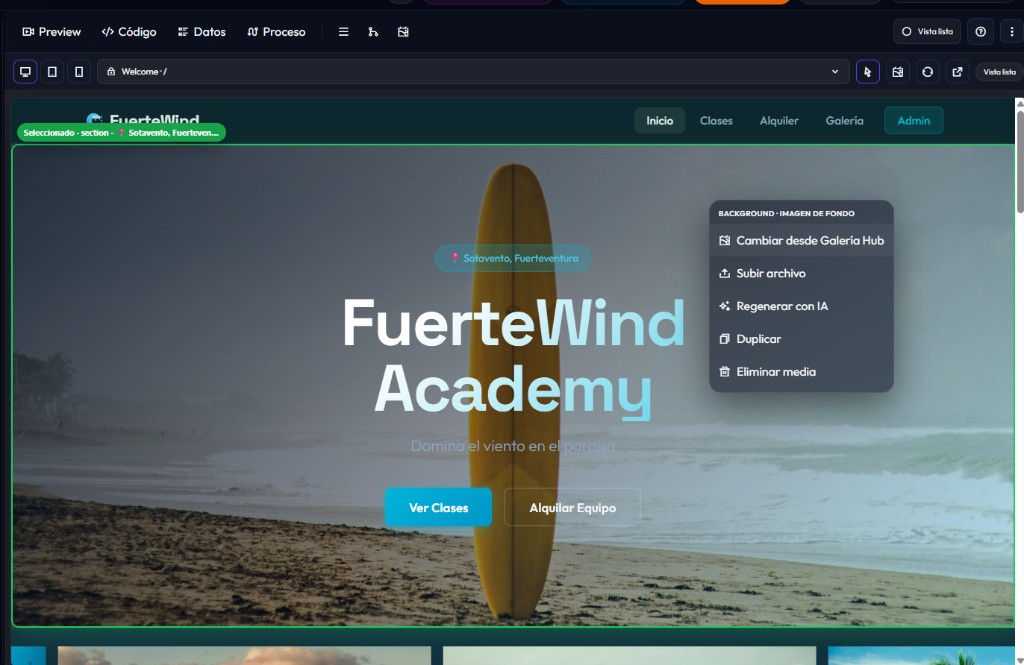
Menu options
Change from Hub Gallery
Opens the gallery in select mode. Pick a photo and click Use on this element.
Upload file
Pick a photo or video from your computer (JPG, PNG, WebP, GIF, MP4, WebM; max ~8 MB). It is saved to the gallery and replaces that slot.
Regenerate with AI
Generates a new image/video for that slot (uses Hub AI Credit).
You can also Duplicate or Delete media from the same menu.
What Visual selector does
- Left-click — select an element (guide Copilot: “change this”).
- Double-click — edit text in the Edit text panel → Apply.
- Right-click — media menu (only on image, video, or background).
Open Hub Gallery (library)
The gallery icon in the bar (or ⋮ → Hub Gallery) opens the library: upload, generate, or delete. That alone does not apply to a preview slot; to replace a specific photo use right-click → Change from Hub Gallery.
- Library — Images, Videos, PDFs.
- Upload — add from disk.
- Generate with AI — FLUX.2 Klein (image) or Seedance 2.0 (video).
Images
JPG, PNG, WebP, GIF · or FLUX.2 Klein
Videos
MP4, WebM · or Seedance 2.0
PDFs
Upload only (not AI-generated)
If Hub’s menu doesn’t appear
Check this
- The cursor icon is active (highlighted).
- Right-click is on the photo/background, not empty text or the frame.
- If you see “Print / Inspect / View frame source”, that’s Chrome — the selector didn’t catch that click.
- Wait until the preview finishes loading; while Copilot is writing, wait a moment.
Limits
- Recommended max file size: ~8 MB.
- No crop in Studio — the whole file is replaced.
- PDFs live in the library; they are not applied via right-click to an image slot.
- AI generation uses Hub AI Credit.