
Start building your first app in minutes
In Hub Studio, websites are created only with Canvas: a live workspace and the Copilot chat. You describe (or dictate) what you need, watch it build in the preview, and iterate until you publish.
1. Create AppWeb Canvas
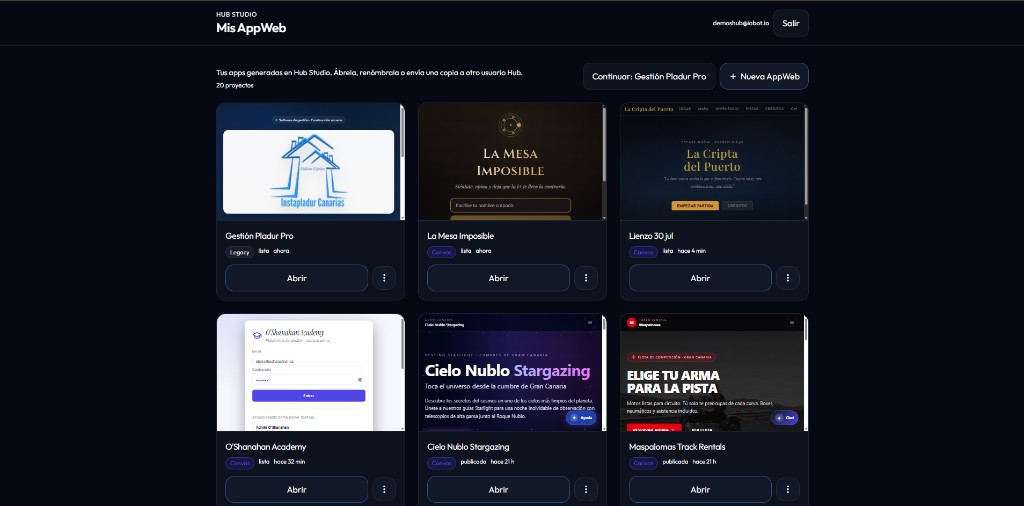
Open Hub Studio. You land on Mis AppWeb: your projects as cards with a thumbnail, status (Canvas / published / failed), and actions. Click + Nueva AppWeb (or Continuar to resume the last one). In a few seconds you enter Canvas with the typographic Welcome and Copilot ready for your first message.
2. Describe your idea in Copilot
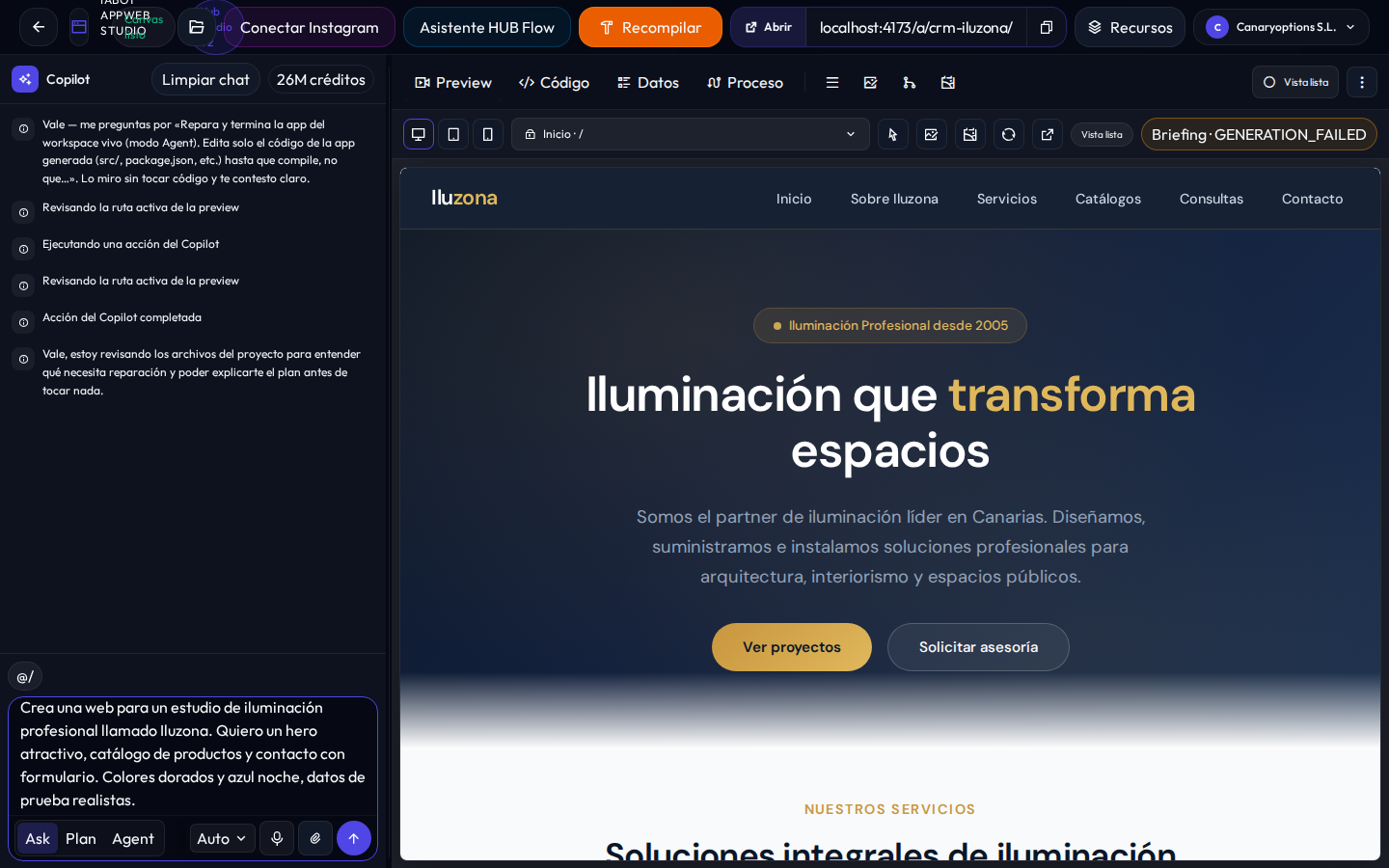
Your first Copilot message kicks off the build. Tell it about the business, the screens you need, the visual tone, and whether you want forms, sample data, or other features. You can use the microphone to dictate, or Adjuntar to attach a screenshot or PDF as reference.
Example of a good message: "Create a site for a modern dental clinic called Sonrisa Sana. I need an attractive homepage, services (orthodontics, implants), and contact with a form. Blue and white colors, realistic sample data."
3. Follow the live build
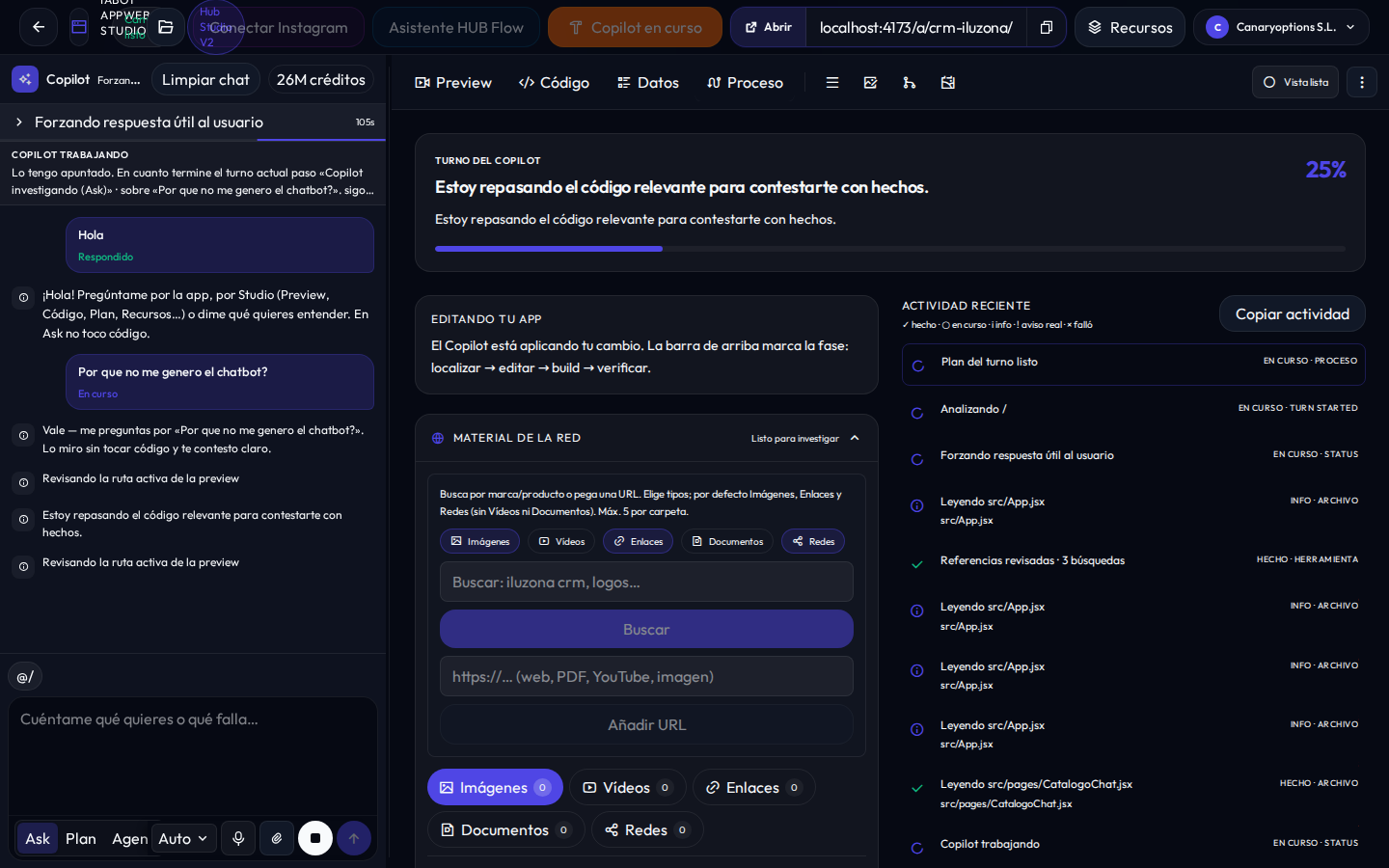
While Copilot works, the workspace shows progress in the Preview, Código, Datos, and Proceso tabs. You don’t connect sections by hand: the agent generates and updates the app on the canvas.
- Preview: the navigable app as it takes shape.
- Proceso: a live feed of what the agent is doing.
- Código / Datos: generated code and the data contract when available.
4. Iterate with Ask, Plan, and Agent
Once the first version is ready, stay in the same chat. Copilot has three modes:
- Ask: investigates and defines (no edits applied).
- Plan: proposes a structured plan; run Build when you’re happy with it.
- Agent: applies changes on the live workspace.
Use Adjuntar to paste screenshots or PDFs and guide the change (“make it like this image”). If Ask offers a handoff, click Cambiar a Agent e implementar.
Iteration tip
Ask for concrete changes: “Add a login screen”, “Switch the palette to greens”, “Improve the home hero”. A clear message plus a screenshot is usually enough.
5. Compilar & shareable URL
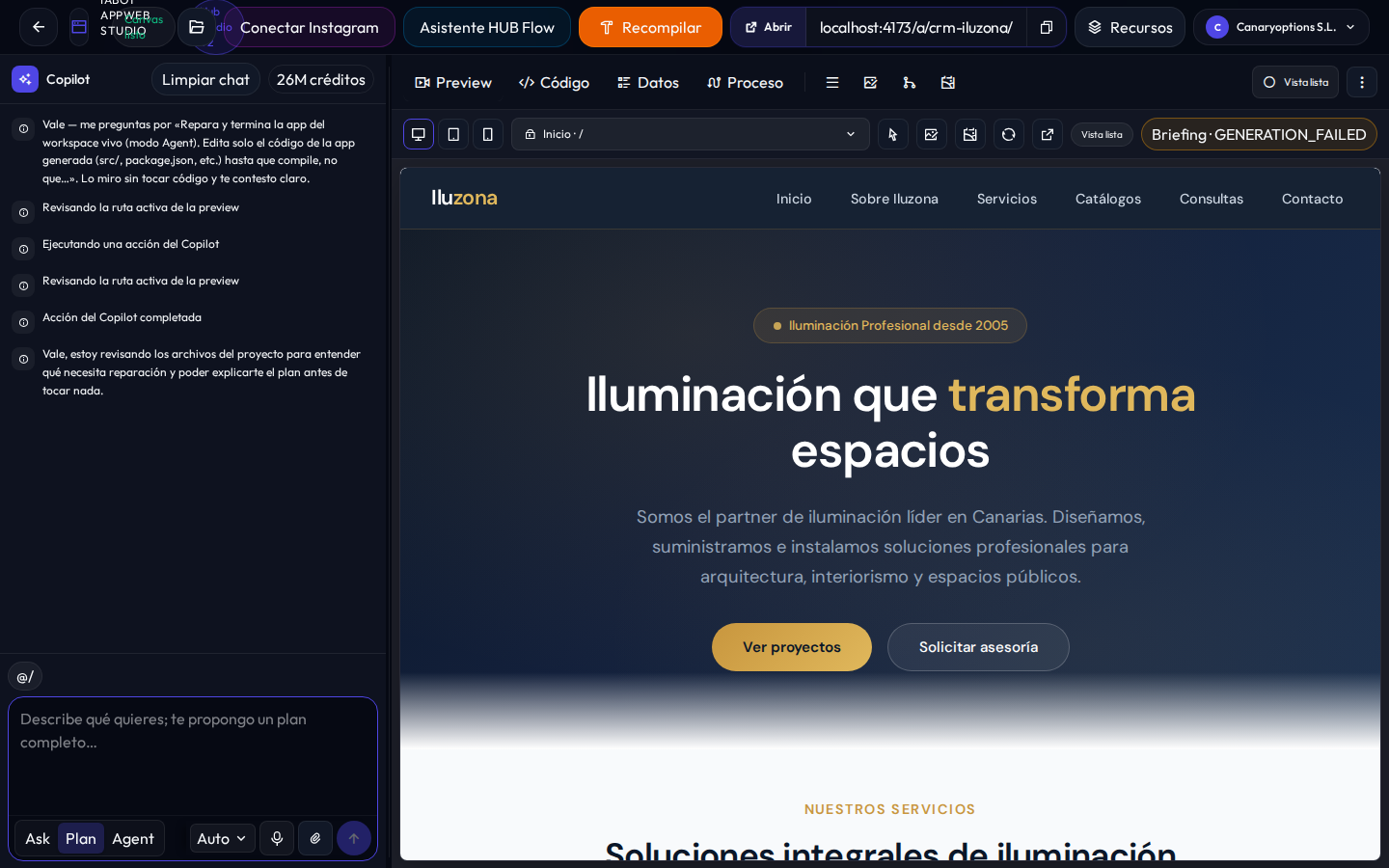
When the preview looks right, click the orange Compilar button in the header.
It builds the dist and activates the public /a/… URL. Afterwards the button becomes Recompilar; use the Abrir / copy chip to share.
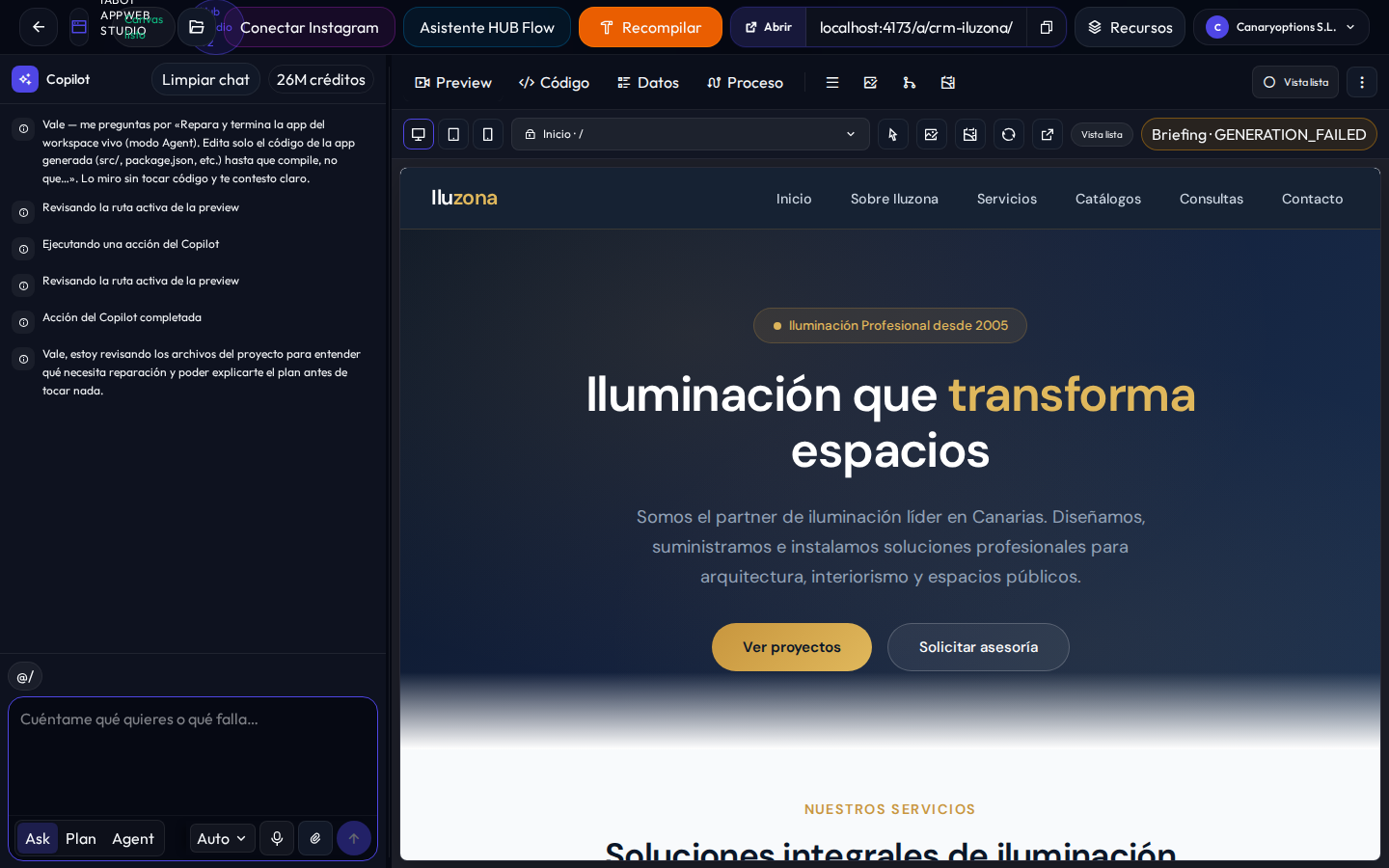
- Shareable URL: the public path you’ll share (chip next to Compilar).
- Database: Hub prepares the Supabase schema from your app’s structure—no credentials to manage by hand.
6. (Optional) HUB Flow Assistant
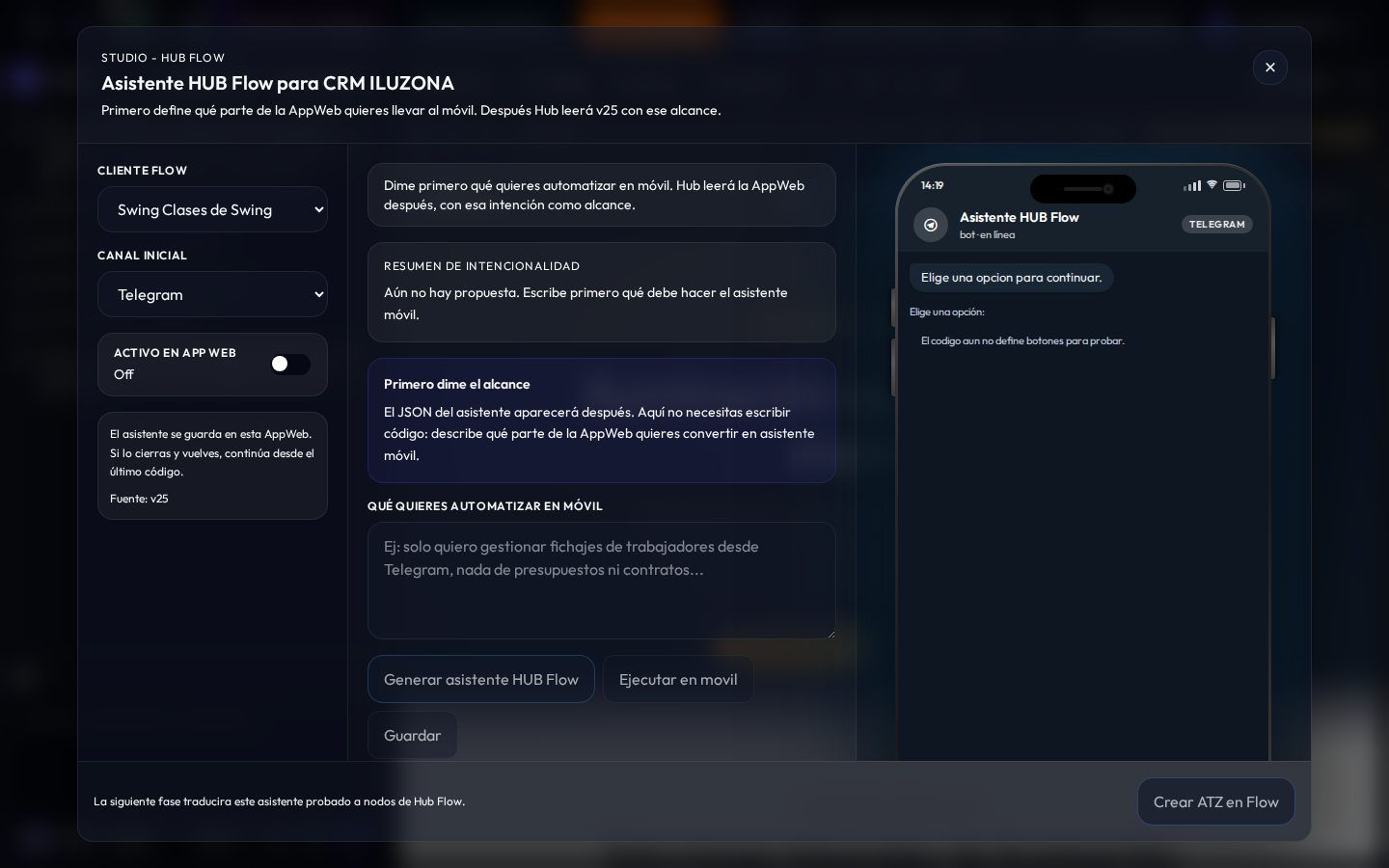
From Canvas press Asistente HUB Flow (header) or Conectar Flow (bar / ⋮): pick Telegram or WhatsApp, generate the assistant, try it in the simulator, then use Crear ATZ móvil to open Hub Flow.
You’re set!
That’s the full loop: Canvas → Copilot message → iterate → Compilar. Keep refining in the same chat whenever you need.
To go deeper: Workspace, Compile, Hub Gallery, Hub AI Credit.