
The Canvas workspace
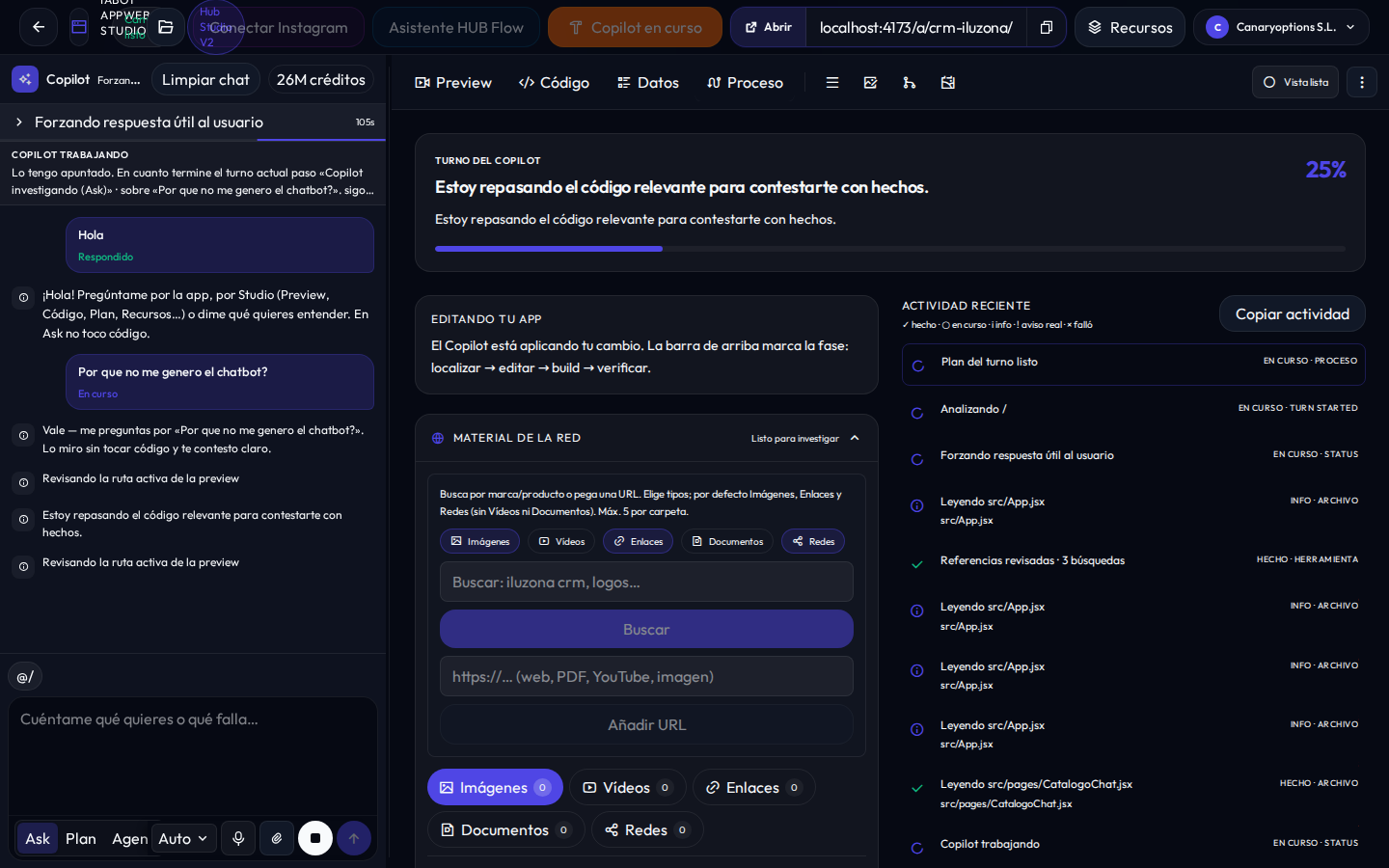
Once an AppWeb is open in Studio, Canvas is your workbench: the Copilot chat on one side, and tabs to see the app, code, data, and what the agent is doing on the other.
This guide complements the Quick Start Guide (create → publish). Here we go deeper into each workspace surface for day-to-day use.
Canvas anatomy
The typical layout has two zones:
- Copilot panel: type, dictate, or attach; choose Ask, Plan, or Agent mode.
- Workspace area: Preview, Código (Code), Datos (Data), and Proceso (Process) tabs.
The header and bar also have Compilar / Recompilar (shareable URL), Asistente HUB Flow / Conectar Flow, Galería Hub, the resource catalog, Editar menú, and the ⋮ menu (pause, Compilar y validar, undo, etc.).
Preview
The live, navigable app. As Copilot builds or iterates, the preview updates. Use it to check screens, forms, and real look-and-feel before you publish.
- Visual selector (cursor icon): click to point, double-click to edit text, right-click image/background for media.
- Navigation: route picker, Desktop / Tablet / Mobile viewports, Reload, and Open in another tab.
Guide: Hub Gallery & right-click media
Code
Shows the generated files for the current version. Useful to review what the agent touched. You don’t hand-edit the source — you ask Copilot, and a new version is created.
Data
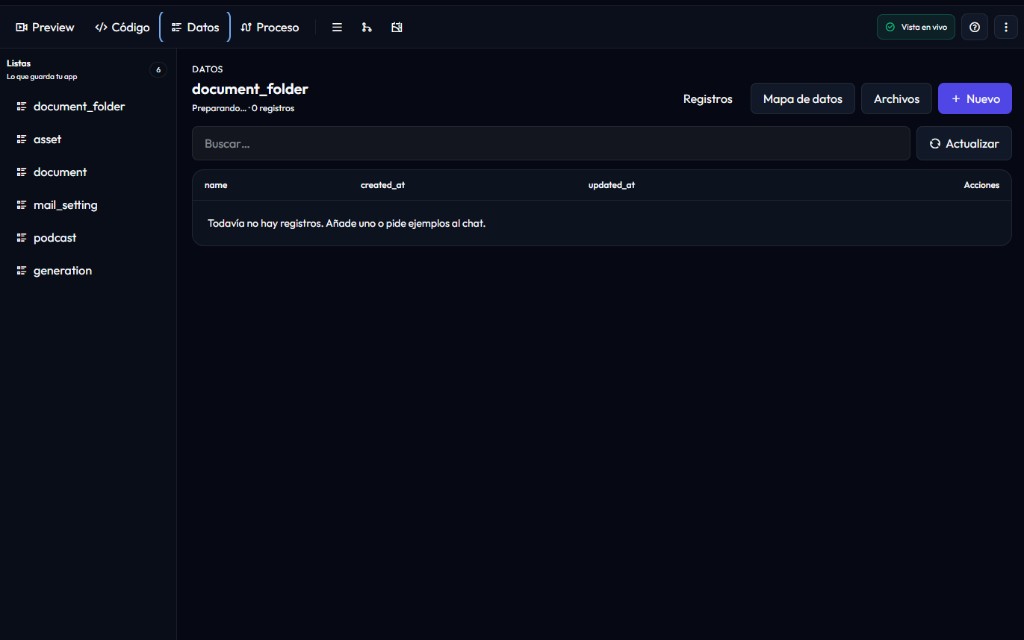
Operational view of what your app stores. Hub prepares the database (Supabase) from the data contract; lists appear when you ask for them in chat.
Inside Datos there are three sub-views:
Records
Your app’s lists. Search, create, edit, or delete rows for sample or production data depending on app state.
Data map
Visual schema of lists and fields. The AI manages the schema via chat; here you understand it without SQL.
Files
Runtime files (photos, PDFs…). If something is missing, ask Copilot or upload via Hub Gallery.
Tip: @datos in chat
When you’re on the Data tab (or you type @datos), Copilot gets richer data-plane context to refine lists, fields, or sample seeds.
Process
Activity feed for the current turn: what the agent is doing, which step it’s on, and any notices. Handy when the preview feels slow. It’s not a flow editor — it’s the open “black box” of Copilot. You can Copiar actividad for the turn from this tab.
Material de la red
On Proceso there’s a collapsible panel Material de la red: research the web (brand, product…) or paste a URL to bring references into Hub folders.
- Types: Imágenes, Vídeos, Enlaces, Documentos, Redes (toggle what you need).
- Buscar or Añadir URL.
- Per source: Quitar (no usar) to exclude it from the AppWeb.
It does not replace Hub Gallery or chat Attach — it’s web research for turn reference material.
Editar menú
Open Editar menú from the workspace bar, the ⋮ menu, or Preview chrome when ready. Rename labels, group, reorder, or hide items in the app’s visible menu.
- Nombre visible and optional Grupo / submenú.
- Subir / Bajar, Quitar del menú (page is not deleted), Ocultar Inicio, Añadir elemento.
- Press Guardar menú to apply. If no editable menu is detected yet, the modal says so.
Versions
In Hub, versions are immutable: every change applied with Agent creates a new version (vN → vN+1). You never hand-edit an existing version’s source.
- Undo turn: from chat or the ⋮ menu (Deshacer último cambio) you can revert recent work without patching an old version.
- Compilar / Recompilar: orange header button; activates or updates the shareable
/a/…URL. See the Compile & URL guide. - Compilar y validar: in the ⋮ menu, builds a check dist; it does not replace header Compilar for the public URL.
If Preview fails
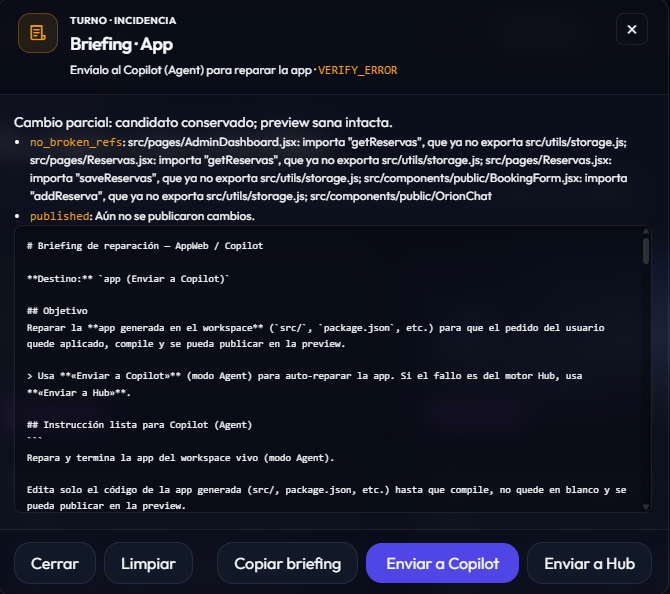
When there’s a preview incident, Hub shows a briefing with a failure summary. The usual flow:
- Open the Proceso tab to see where the agent stopped.
- Review the preview briefing (message + failed checks).
- If the failure is in the app, click Enviar a Copilot (Agent mode) to attempt a repair.
- If the failure is in the Hub engine, the briefing invites you to Enviar a Hub (Ops / Errors).
You can also describe the symptom in chat (“contact page won’t load”, “form doesn’t submit”) in Agent mode. A concrete message + an Adjuntar screenshot speeds up the fix.
Copilot tools
Chat is the main way to change the app. Three modes:
- Ask: research and define; does not apply changes.
- Plan: proposes a structured plan; launch Build when you’re happy.
- Agent: applies changes in the live workspace.
Attach
Screenshots, PDFs, or visual references. Great for “make it like this image”.
Microphone
Dictate the brief or the change. Speaking is as natural as typing.
Model & reasoning
In the composer, next to Ask/Plan/Agent, pick the turn model ( Auto · rápido → preciso, DeepSeek V4 Flash/Pro, or MiMo. With Editar razonamiento adjust effort (Off / High / XHigh depending on model). Hub still routes tasks; this sets the turn preference. More in AI Models.
Queue · Encolar
If Copilot is busy and you send another message, it is queued (you’ll see En cola · nº N and a queue notice in chat). When the current turn ends, pending messages continue.
Limpiar chat
In the Copilot panel header: Limpiar chat clears conversation history (chat context). It does not delete app code or versions. If a turn is running, it also stops that turn and the pending queue (you’ll be asked to confirm).
Examples of good messages
Ask for concrete changes. A clear message is usually enough; a screenshot helps even more.
Hub Gallery
Media library (images, video, PDF). Upload or generate with AI. To change a photo on the web: Visual selector → right-click the media → Gallery / upload / regenerate.
Resources and capabilities
Maps, Stripe, LLMs, AI images… are requested in the Copilot message. You can also open the resource catalog from the Canvas bar (+).
Mis AppWeb (projects)
Mis AppWeb is the Studio home: your project list. From there you create, open, and manage apps before entering Canvas.
- Nueva AppWeb / Crear AppWeb Canvas: starts an empty project with Copilot ready.
- Continuar: returns to the last opened project.
- Per card: open, rename, duplicate, send a copy to another Hub user, or delete.
Guide: Send a copy (vs duplicate and public URL)
On mobile
On narrow screens, Canvas switches surfaces: Copilot chat or the active view (Preview, Code, Data, Process). Use the top bar to switch and the ⋮ menu for the rest.
Day-to-day costs
Copilot (Ask, Plan, Agent) and AI resources in your published app debit the same Hub AI Credit. Your plan includes balance; you can top up 1:1. If it runs out, the app stays online and only AI pauses.
Guide: Hub AI Credit Models and credit
Compile, shareable URL, and Flow
Compilar / Recompilar (header) builds the dist and activates the shareable /a/… URL.
Asistente HUB Flow / Conectar Flow opens the mobile-channel modal, simulator, and Crear ATZ móvil.
Guide: Compile & URL Guide: HUB Flow Assistant Hub Flow & ATZ